
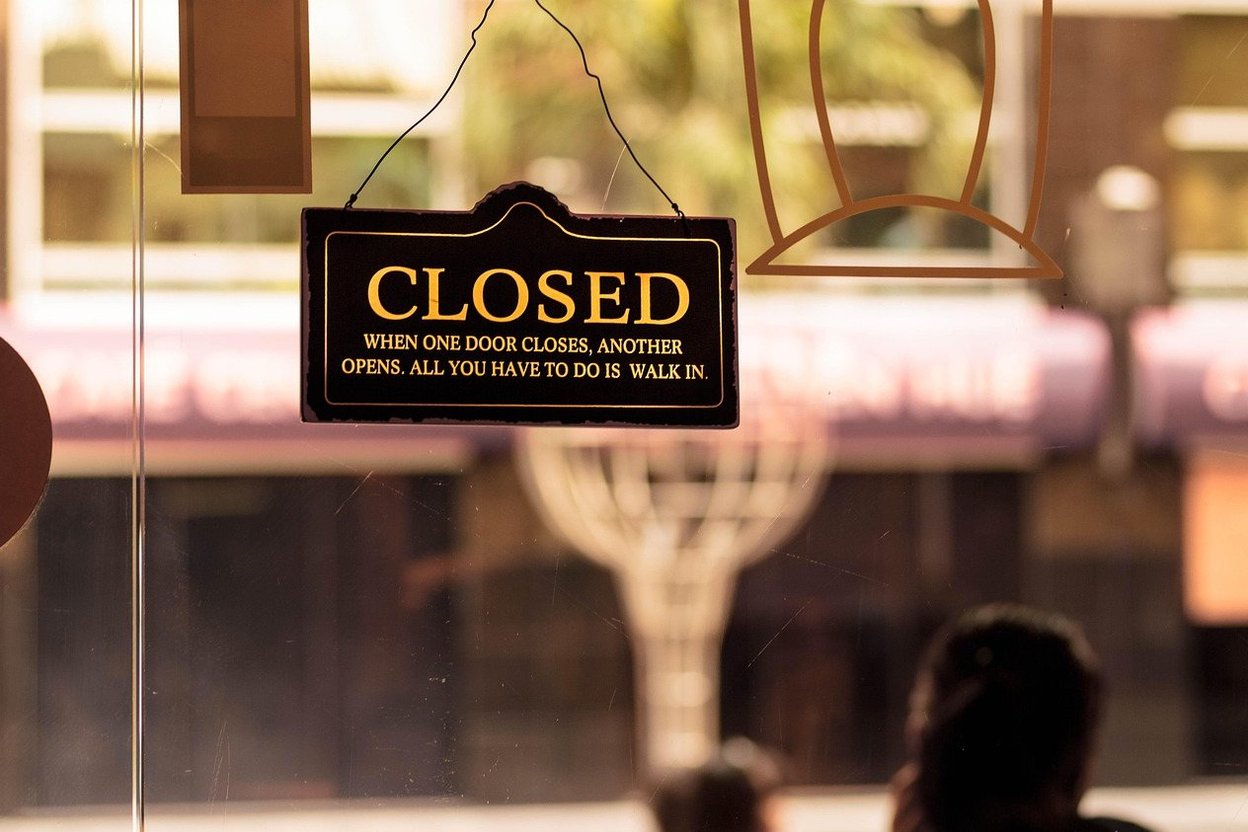

You close the tailgate, pour a coffee, and your phone buzzes: a customer asking if you're coming out Thursday. You are not — it's Thanksgiving — but your Google listing still says you're open. That is not a glitch. Google defaults to your regular weekly hours every week until you tell it otherwise. The fix is a two-minute setting called Special hours, and getting it wrong has a real cost: if your listing says open when you're not answering, Google drops you from "open now" searches entirely.
Why Google still shows you as open
Google does not know your holiday plans. It runs your regular weekly schedule on repeat until a Special hours entry overrides a specific date. If your profile says you're open Thursdays, it shows you as open on Thanksgiving Thursday — full stop.
The other cost people miss: if your hours say Closed when you're actually taking calls, or say Open when you're not, Google can exclude you from "open now" searches. That is customers who are ready to hire, right now, routed to your competition instead.
Who needs to do this
Whether you're shutting down completely or just adjusting your day, all three situations need attention:
- Closed on Thanksgiving — mark the date Closed so Google stops routing calls to a phone nobody is answering.
- Open with shorter or adjusted hours — enter the actual hours you'll pick up so customers see the real window.
- Open at your normal hours — it still takes thirty seconds to confirm the entry. Google sometimes shows a "hours might differ" warning on official holidays that leaves customers guessing. Confirming removes that doubt.
How to set Special hours on desktop
Make sure you're signed in to the correct Google account before you start — if you manage more than one profile, it is easy to update the wrong one.
From your computer, the path is:
- Find your Business Profile (search your business name on Google or go to business.google.com).
- Select Edit profile.
- Select Hours, then Special hours.
- Select Edit.
- Choose a suggested date, or select Add a date to pick one manually.
- Toggle the date Closed, or enter the hours you'll actually be available.
- Select Apply (or Save) to confirm.
Repeat for each date you want to cover.
How to set Special hours on mobile
The path is the same on a phone. Open the Google Maps app or the Google Business Profile app on iOS or Android, sign in to the correct account, and follow the same steps: Edit profile → Hours → Special hours → Edit → choose your date → set hours or mark Closed → Apply.
Do them all in one session — the full holiday date list
The smart move is to set every date at once. It takes two to five minutes, and you're done until spring.
Here are the 2026–2027 holiday dates to add:
- Thanksgiving — Thursday, Nov. 26, 2026
- Black Friday — Friday, Nov. 27, 2026
- Christmas Eve — Thursday, Dec. 24, 2026
- Christmas Day — Friday, Dec. 25, 2026
- New Year's Eve — Thursday, Dec. 31, 2026
- New Year's Day — Friday, Jan. 1, 2027
You can mark some Closed and enter reduced hours for others. Set them all now while you're thinking about it.
The 6-day rule: when to use Temporarily Closed instead
Special hours work for closures or adjusted hours covering up to six consecutive days. If you are shutting down for seven or more days in a row — say, a full Christmas-to-New-Year break — use Temporarily Closed in your profile instead. That setting is built for extended shutdowns and handles the display correctly.
Verify it actually went live
After you save your changes, search your own business name on Google and look at the public listing. Confirm the holiday hours appear the way you set them. This takes thirty seconds and catches any save error before a customer sees the wrong information.
Other places to update while you're at it
Google is where most calls start, but it is not the only place. While you're in update mode, consider:
- Apple Maps
- Bing
- Yelp
- Your website's contact or hours page
- Your voicemail greeting — especially if you're taking emergency calls only, make the instructions clear there too
---